
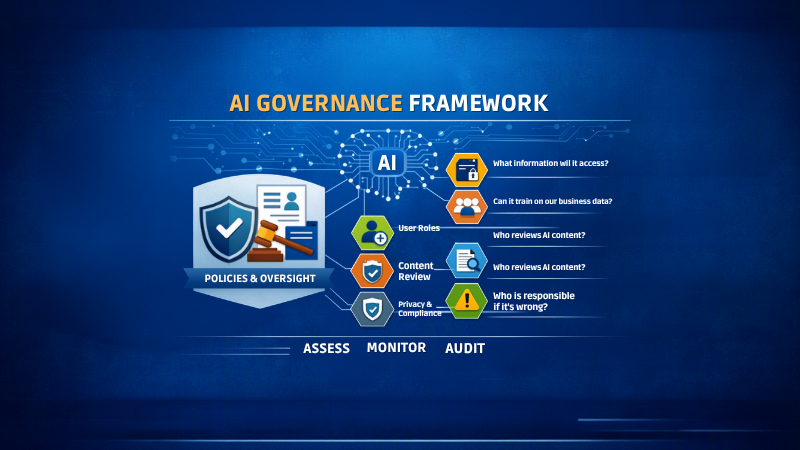
Start with governance, not the tool
- Artificial intelligence is changing how productive organisations operate. Microsoft Copilot for business brings AI assistance into the applications many organisations already use every day, including Word, Excel, PowerPoint, Outlook and Teams.It can help you draft content, understand lengthy documents, analyse information, prepare presentations, catch up on emails and identify actions from meetings. More importantly, licensed Copilot users can work with business information they already have permission to access across Microsoft 365. Microsoft states that Copilot respects existing permissions, sensitivity labels and compliance policies.
-
- If you are one of the leaders in your organisation, you should seriously consider getting a Copilot licence as soon as possible.
- Leaders typically spend a significant part of their working day reading, writing, reviewing, searching, preparing, analysing and communicating. These are precisely the kinds of activities where Copilot can provide practical assistance.
- With the right licence, sensible security controls and some basic training, it is difficult to imagine a busy business leader not finding valuable uses for Copilot. The value may come from preparing for an important meeting, finding a decision buried in an email thread, reviewing a proposal, analysing a spreadsheet or creating the first draft of a strategy document.
- Copilot does not replace your judgement. It gives you a faster way to reach the point where your judgement is most valuable.
- If your time is valuable, even a small improvement in the way you search, prepare, communicate and make decisions can justify taking a serious look at Copilot.
-
- Copilot works across familiar Microsoft 365 applications, helping people move more quickly from information to action. The available features can vary depending on your Microsoft 365 plan, Copilot licence and your organisation’s configuration.
- Here are practical examples of how a business leader or employee may use it.
-
- In Outlook, Copilot can summarise email threads, suggest action items, help draft replies and adjust the length or tone of an email.
- You could ask Copilot to:
- Summarise a lengthy discussion and explain the decision required.
- Identify questions that have not yet been answered.
- Draft a clear and professional response.
- Make an email shorter, friendlier or more direct.
- Suggest actions arising from an email conversation.
- Help you understand the history behind a client or project discussion.
- Example prompt:
- Summarise this email thread. Tell me what has been agreed, what remains unresolved and what I need to do next.
-
- Instead of manually searching through emails, documents and previous discussions, a licensed user can ask Copilot to help locate and organise relevant information that the user already has permission to access.
For example, you could ask it to:
- Summarise recent interactions relating to a client.
- Find open actions from previous conversations.
- Prepare a list of questions for an upcoming meeting.
- Identify documents that may be relevant.
- Create a concise briefing for an executive discussion.
- Microsoft describes Copilot as working across files, email, chats and meetings so that information can remain connected as people move through their day.
- Example prompt:
- Help me prepare for my meeting with this client. Summarise the recent issues, decisions, outstanding actions and any commitments I have made.
-
-
- In Teams, Copilot can help recap conversations, organise key discussion points, identify actions and answer questions about a meeting or chat.
You could ask:
- What decisions were made?
- What actions were assigned?
- Was a deadline discussed?
- What concerns were raised?
- Where did participants disagree?
- What should I follow up next?
Example prompt:
- Summarise the meeting into decisions, actions, owners and due dates. List anything that was discussed but not resolved.
- This can also make it easier for someone who joined late or missed a meeting to understand the important points, provided that the necessary meeting content is available to Copilot.
-
-
- Copilot in Word can help create, summarise, understand, refine and restructure documents. Microsoft also documents capabilities such as turning text into a table and drafting a document using other documents as references.
Business uses may include:
- Drafting policies and procedures.
- Preparing executive summaries.
- Turning rough notes into a structured proposal.
- Simplifying technical information for a client.
- Comparing sections of documents.
- Rewriting content for a different audience.
- Extracting actions, risks or requirements from a document.
- Producing a first draft of a report.
Example prompt:
- Turn these notes into a professional two-page client proposal. Include the business problem, recommended solution, expected benefits, assumptions and next steps.
-
- Copilot in Excel can assist with formulas, charts and insights about spreadsheet data.
You may be able to use it to:
- Explain the information contained in a workbook.
- Identify patterns, exceptions or unexpected results.
- Suggest formulas.
- Create summaries and visualisations.
- Compare performance across periods or categories.
- Explore the possible reasons behind a change.
- Turn raw data into a clearer management view.
Example prompt:
- Analyse this data and highlight the most important trends, unusual results and areas that management should investigate.
- The output should always be reviewed against the underlying figures before it is used for an important financial or operational decision.
-
- Copilot in PowerPoint can create a presentation from a prompt or a Word document. It can also summarise presentations, answer questions, add slides or images and make broader formatting changes.
You could use it to:
- Turn a strategy document into an initial presentation.
- Create an executive briefing.
- Summarise an existing presentation.
- Adapt slides for a different audience.
- Reorganise a presentation to improve its flow.
- Create or replace supporting visuals.
- Draft speaker notes and key messages.
Example prompt:
- Create an executive presentation from this document. Focus on the business problem, key findings, risks, recommendations and next steps.
-
- One of Copilot’s most useful capabilities can be helping users find and understand information across the Microsoft 365 content they are authorised to access.
- Instead of trying to remember where something was stored, you may be able to ask questions such as:
- Where did we agree on the scope of this service?
- What is the latest approved version of this policy?
- What commitments have we made to this client?
- Which document explains this process?
- What were the reasons behind this decision?
- What actions are still outstanding on this project?
- Copilot uses Microsoft Graph content such as emails, chats and documents that the user has permission to access. Microsoft says prompts, responses and data accessed through Microsoft Graph are not used to train foundation large language models.
-
- Copilot in OneDrive can extract information, summarise files, compare key differences and generate insights.
This may assist with tasks such as:
- Comparing two proposals.
- Reviewing different versions of an agreement.
- Summarising a group of project documents.
- Identifying differences between policies.
- Extracting facts from reports.
- Creating a concise brief from several source files.
Example prompt:
- Compare these proposals. Create a table showing the differences in scope, price, assumptions, exclusions, risks and recommended next steps.
-
- Copilot can help turn early thinking into organised material. In OneNote, it can draft plans, generate ideas, create lists and organise information. In Whiteboard, it can assist with generating, categorising and summarising ideas. [Applicatio…nizations)]
Examples include:
- Creating a project plan.
- Structuring a brainstorming session.
- Developing an agenda.
- Organising workshop notes.
- Creating a checklist.
- Turning unstructured ideas into themes.
- Drafting a communication plan.
-
- Copilot in Microsoft Forms can assist with drafting, reviewing, sending and analysing surveys, quizzes and polls.
- A business could use this for:
- Client satisfaction surveys.
- Employee feedback.
- Training assessments.
- Event registrations.
- Internal process reviews.
- Project retrospectives.
-
- Copilot agents can provide focused assistance using approved instructions and information sources. Microsoft also provides Agent Builder and Copilot Studio for creating agents with different levels of sophistication.
- An employee policy assistant.
- An onboarding assistant.
- A sales information assistant.
- A service desk knowledge assistant.
- A project information assistant.
- A quality management assistant.
- An internal process assistant.
Agent licensing and consumption charges need to be understood before deployment. Qbit’s internal Copilot Costs.docx already recommends distinguishing
-
- Senior people generally have access to a broad range of business information and frequently move between emails, meetings, reports, documents, spreadsheets and presentations.
- That makes them well placed to find high-value Copilot use cases, including:
- Reducing preparation time by creating briefs before meetings.
- Improving follow-up by extracting actions and decisions.
- Finding information faster across authorised business content.
- Starting documents sooner with structured first drafts.
- Understanding data more easily through summaries and visualisations.
- Improving communication by adjusting clarity, structure and tone.
- Testing ideas quickly before assigning work to a team.
- Reducing administrative friction across the working day.
- Qbit’s own planning has consistently focused on showing practical Copilot examples, including finding information in documents, summarising meetings, improving natural-language prompting and maintaining security through appropriate access. [Copilot with Brad | Teams]