Your Simple Guide to a Faster, Smarter, and More Efficient Inbox
Running a business means your Outlook mailbox probably fills up before you know it. Whether you’re a business owner or an employee, keeping your mailbox tidy is not just about being organised, it helps with search performance, reduces clutter, and can save you money by avoiding unnecessary Office 365 license upgrades. In this blog, we’ll break down why Outlook mailbox cleanup matters, how to do it efficiently, and share a few tips to keep things running smoothly. Plus, we’ll show you how Qbit IT Solutions can make your life easier with professional IT support and cyber security guidance. If you’ve ever thought ‘my mailbox is full’, ‘how do I empty it’, dealt with a ‘mailbox full’ or ‘mailbox is full’ warning, these tips will help you understand how to clean your email inbox effectively.
Why Mailbox Cleanup Matters
It’s easy to let old emails pile up, especially when the day-to-day gets busy. But over time, a crowded Outlook mailbox creates problems. Searching for important messages gets slower, your overall Outlook performance drops, and you risk running out of storage. This can force you to upgrade your Office 365 license earlier than you need to, adding unnecessary expenses to your business. Keeping your mailbox clean means faster searches, improved productivity, and fewer headaches for your IT team.
Common Outlook Issues Caused by a Full Mailbox
- Slow or unresponsive searches
- Delayed sending and receiving of emails
- Error messages about mailbox size limits
- Inability to back up emails or access archived data
By regularly cleaning up your Outlook mailbox, you minimise these issues and keep your business communications flowing smoothly.
Why It’s Important: The Real Benefits of Cleanup
1. Improved Search Performance
A streamlined mailbox makes searching for important information faster and more reliable. Outlook’s search function works best when it doesn’t have to sift through thousands of unnecessary emails.
2. Storage Savings
Every email, attachment, and calendar invite takes up space. By deleting what you don’t need, you can avoid maxing out your allocated storage, which means you won’t be forced into a higher Office 365 plan before you’re ready.
3. Avoiding Unnecessary Office 365 License Upgrades
Once your mailbox hits its limit, Office 365 will prompt you to upgrade your license. Proactive mailbox cleanup helps you make the most of your current plan and keeps costs down.
4. Other Advantages
Cleaning up your mailbox also reduces the risk of cyber security threats. Old emails with attachments can become targets for cybercriminals, so regularly removing them helps protect your data and your business reputation.
Quick Tip: Use Outlook Online for Bulk Deletions
Deleting large volumes of emails can be much easier in Outlook Online. The web version lets you quickly select and remove hundreds or thousands of emails at once, which is often quicker and more reliable than the desktop app. Just log in through your browser, head to the folder you want to clean up, and use the ‘Select All’ feature to speed things up.
Step-by-Step Guide: How to clean outlook email inbox
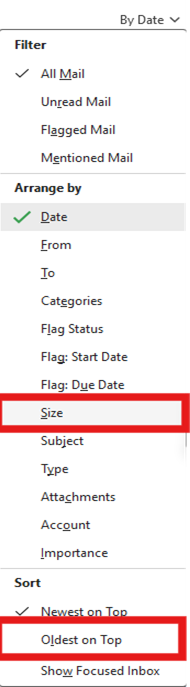
- Sort Emails by Size
Sort your inbox, Sent Items and other folders by size to quickly identify the biggest space hogs. In Outlook, click on ‘Sort by’ and choose ‘Size’. Focus on deleting emails with large attachments first, as these make the biggest impact on your storage.
2. Remove Unnecessary Attachments
Attachments take up more space than text emails. For important documents, save them to SharePoint, OneDrive, or your local drive, then delete the email or remove the attachment. This keeps your mailbox lean while ensuring you don’t lose valuable files.
3. Unsubscribe from Unwanted Newsletters
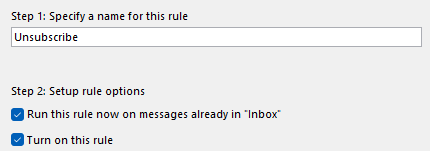
Automate your inbox by setting up rules to move or delete newsletters, promotions, or notifications you no longer need. Go through your subscriptions and hit ‘Unsubscribe’ where possible to reduce ongoing clutter.
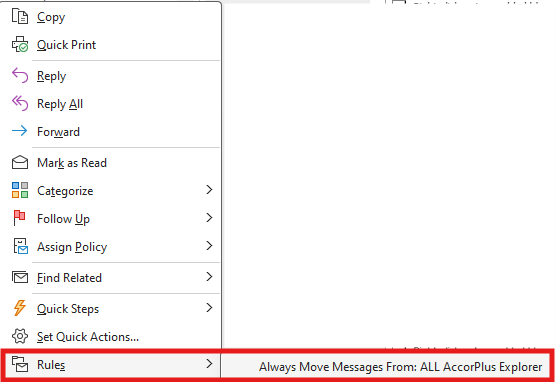
Create an Unsubscribe folder
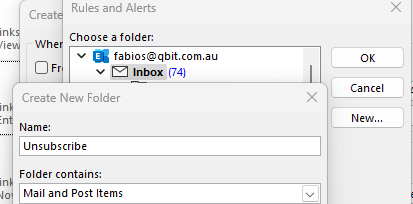
Click advanced options
Click with specific words in the body and type unsubscribe and click add. Click through and add other conditions if you want to and then select run this rule now and finish.
4. Manage Ongoing Attachments
Make it a habit to save important attachments outside your mailbox and clear them out regularly. Consider using Microsoft Teams or SharePoint for file sharing, which keeps your mailbox light and centralises your documents for better collaboration.
5. Empty the Deleted Items and Junk Email Folders
Once you have done a cleanup most of these emails will still be in your deleted folder and you still have not reduced your mailbox size. We recommend that you then either right click on deleted items and empty folder if this is too scary the other option is to select anything that is six months and older and delete them. This can often be faster doing it in Outlook online. http://outlook.office.com/mail/
Related IT Support and Cyber Security Topics
Want more tips on Outlook optimisation? Learn how our IT support services can help you streamline your workflow and safeguard your data. Stay up to date with our cyber security advice to keep your business protected from evolving threats.
Get Support from Qbit IT Solutions
Mailbox cleanup is just one part of a healthy IT environment. If your business needs help with Outlook, Office 365, or any aspect of IT support and cyber security, Qbit IT Solutions is here to help. Our friendly team can provide expert advice, handle tricky issues, and set up proactive systems to keep your business running smoothly. Don’t let a messy inbox slow you down—reach out to Qbit IT Solutions today and discover how we can make technology work for you.